
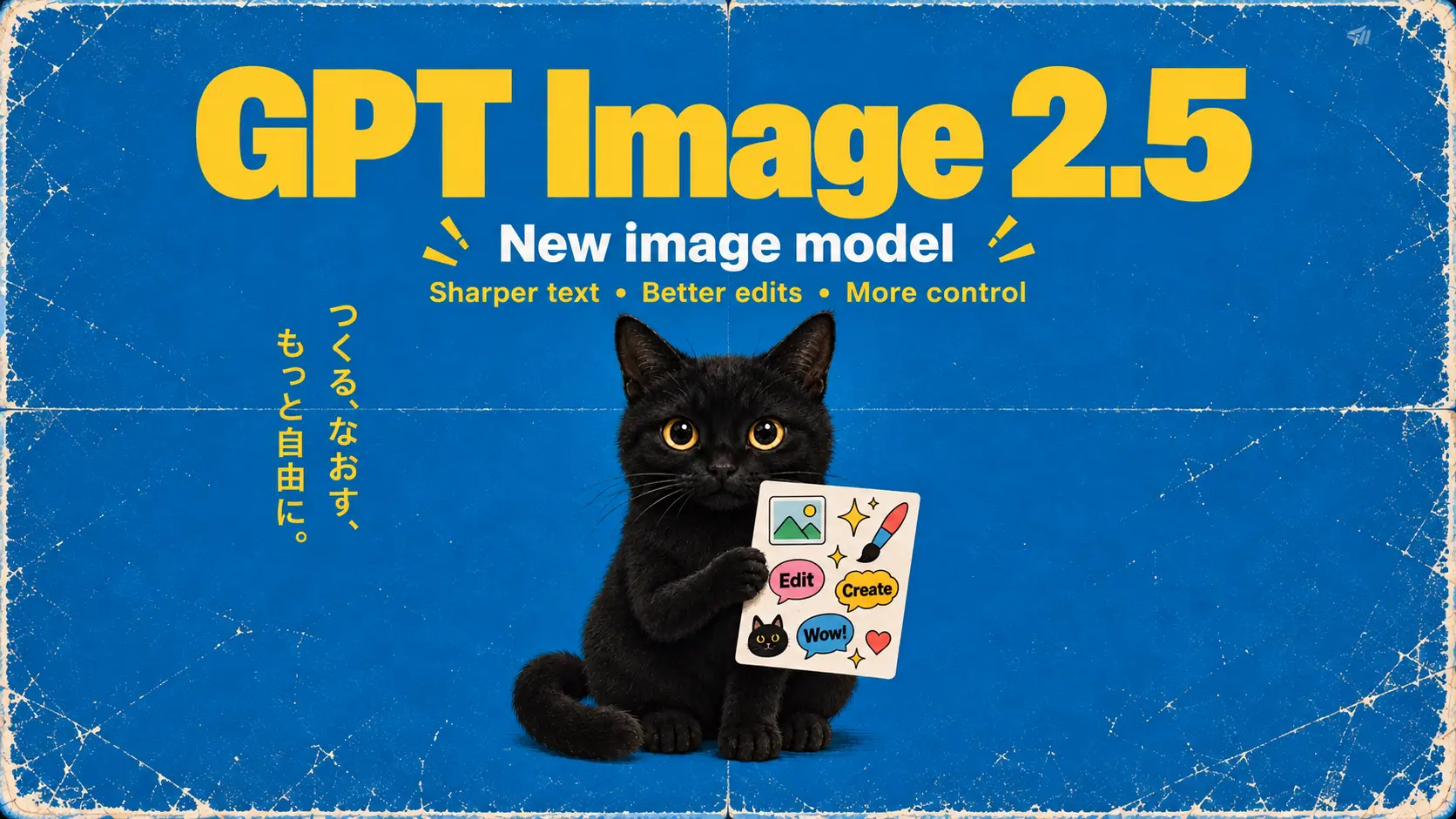
GPT Image 2.5
Create from text or edit references with GPT Image 2.5. Choose Flare or Sunburst in the generator above; the dedicated guide page is coming soon.
Dedicated guide coming soonStart with a sentence or a reference photo. Shape product scenes, character looks, and social visuals—then iterate until the image is ready to download.
More model options
Try Flare or Sunburst in the model selector above. Both are available for image creation and editing; a dedicated guide page is coming soon.
Create from text or edit references with GPT Image 2.5. Choose Flare or Sunburst in the generator above; the dedicated guide page is coming soon.
Dedicated guide coming soonHow it works
No separate apps—pick a model, describe what you want, and refine until you are happy with the download.
Create from text or open image editing. Say who or what is in the shot, where they are, and the mood you want.
Drop in reference images if the model allows, then choose aspect ratio and resolution. Glance at credits before you generate.
Not quite right? Change the prompt, swap a reference, or branch from the last result into a new edit.
Zoom in on faces, type, and product details. Download the version you trust for your store, feed, or video workflow.
Why AIDance
Swap models without leaving the page, stack edits with references, and land on a visual you can actually ship.
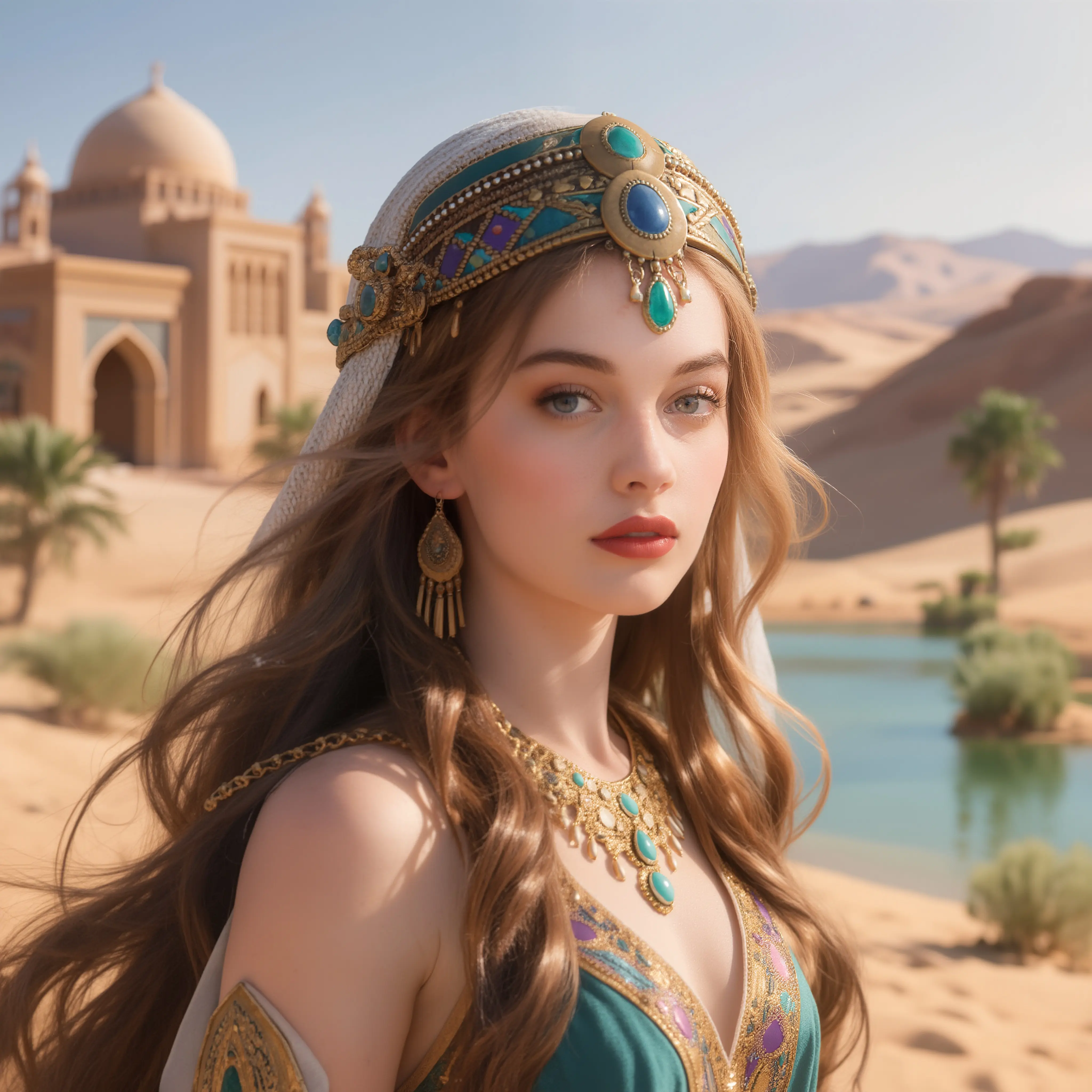
Nano Banana and GPT Image families sit side by side. Match the model to how many references you need and how much control you want.
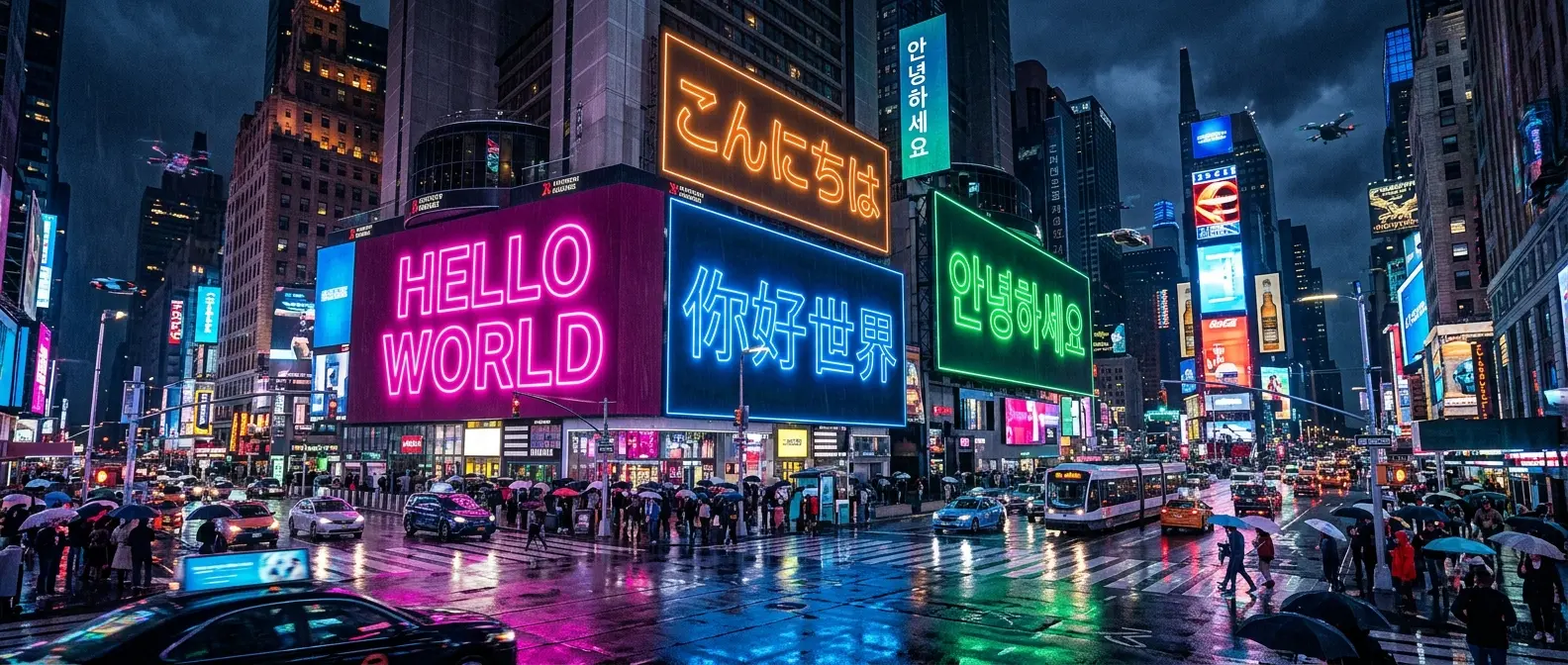
Keep the product, replace the background, shift the light—spell out what stays and what moves. Use each output as the input for the next pass.
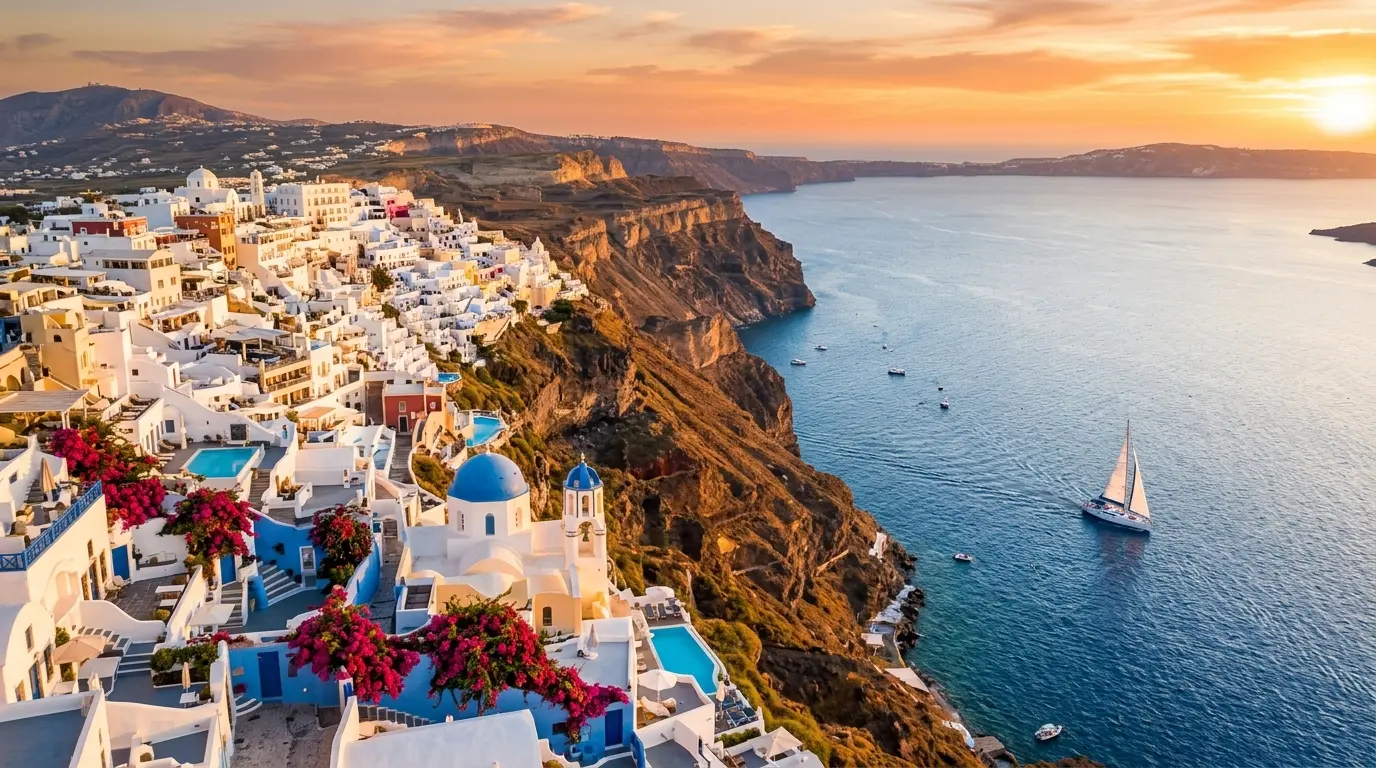
Portrait, square post, wide banner: pick the aspect ratio and resolution your model offers before you generate.
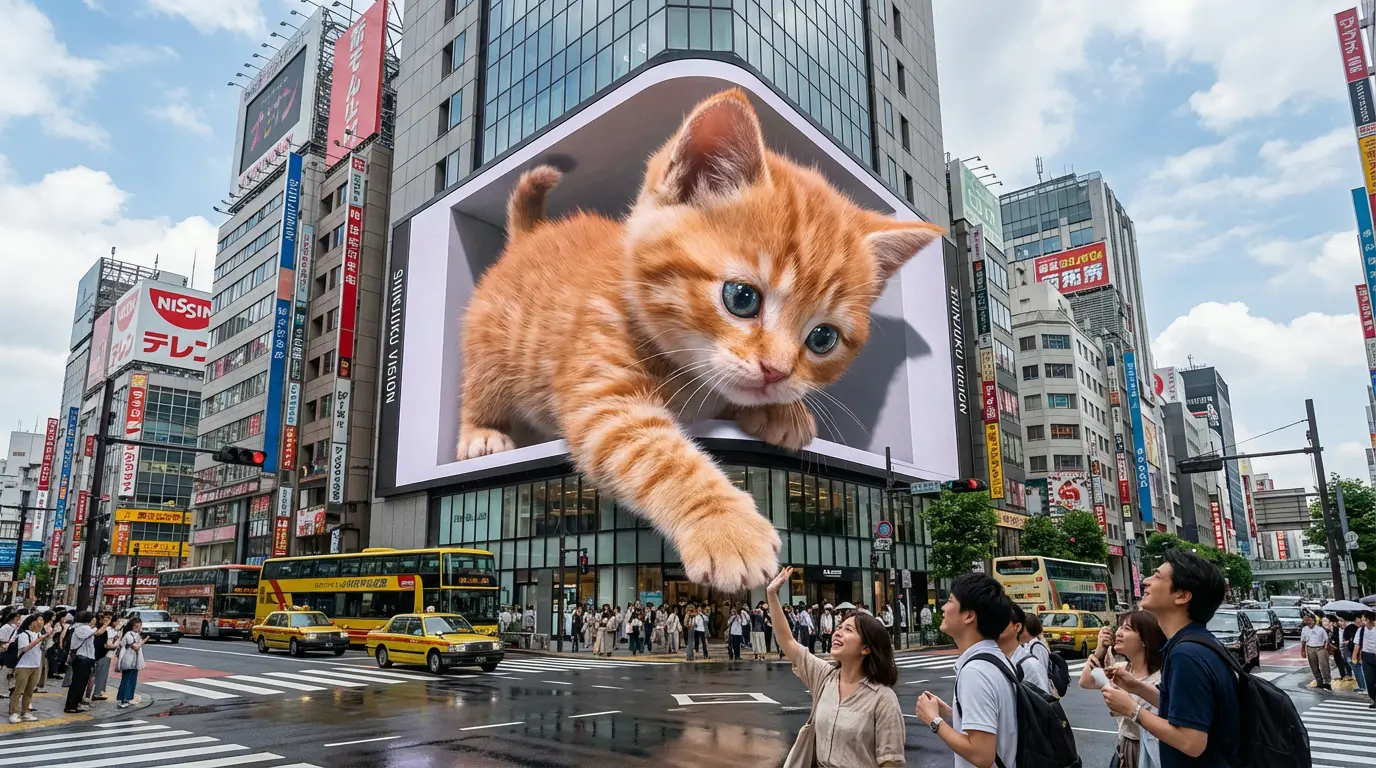
Lock a character or scene look here, download it, and carry it into a supported video mode when you are ready to add motion.
Model guide
Nano Banana 2, Nano Banana Pro, GPT Image 2, and GPT Image 2.5 Flare or Sunburst each handle references and edits differently—compare before your first run.
Create from text or edit references with GPT Image 2.5. Choose Flare or Sunburst in the generator above; the dedicated guide page is coming soon.
Dedicated guide coming soonCreate from text or edit references with the Flare option.
Explore another image creation and editing option with Sunburst.
Select Flare or Sunburst, describe your image, and choose the resolution and quality settings available in the generator.
Use cases
Same generator, different jobs—from shelf-ready product art to a thumbnail you post tonight.
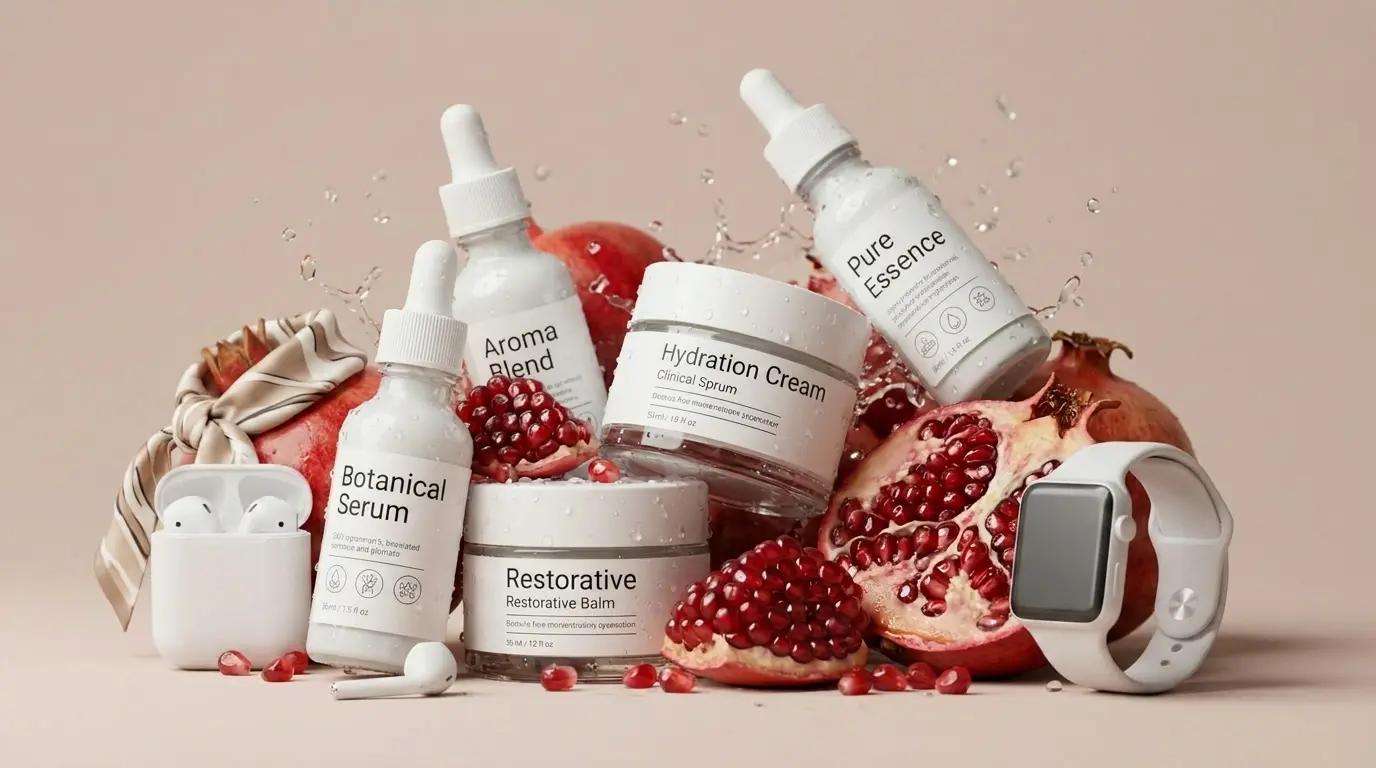
Drop your packshot on a new surface or season. Inspect labels and edges before anything goes live in your shop.
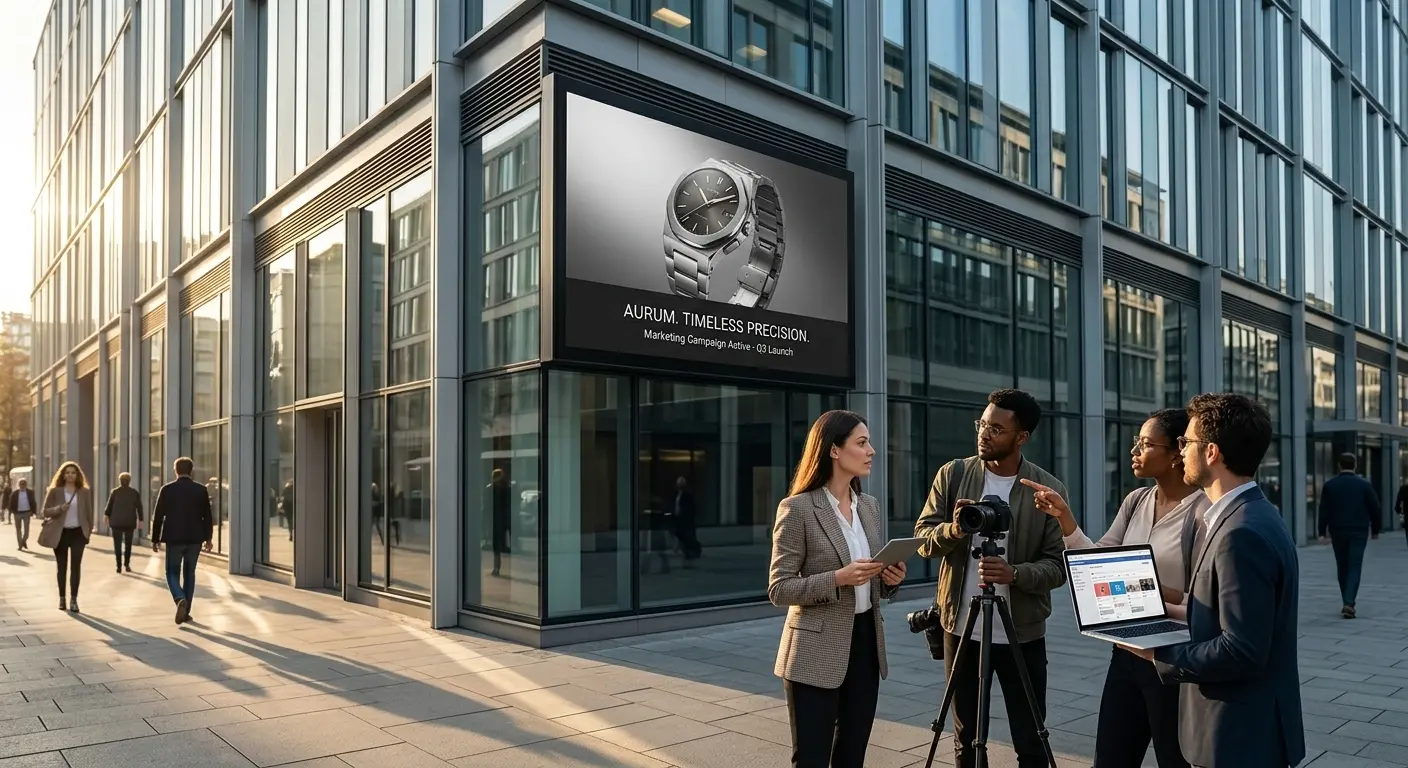
Turn a one-line brief into visuals the team can react to in the same meeting—launch teasers, promo frames, brand explorations.
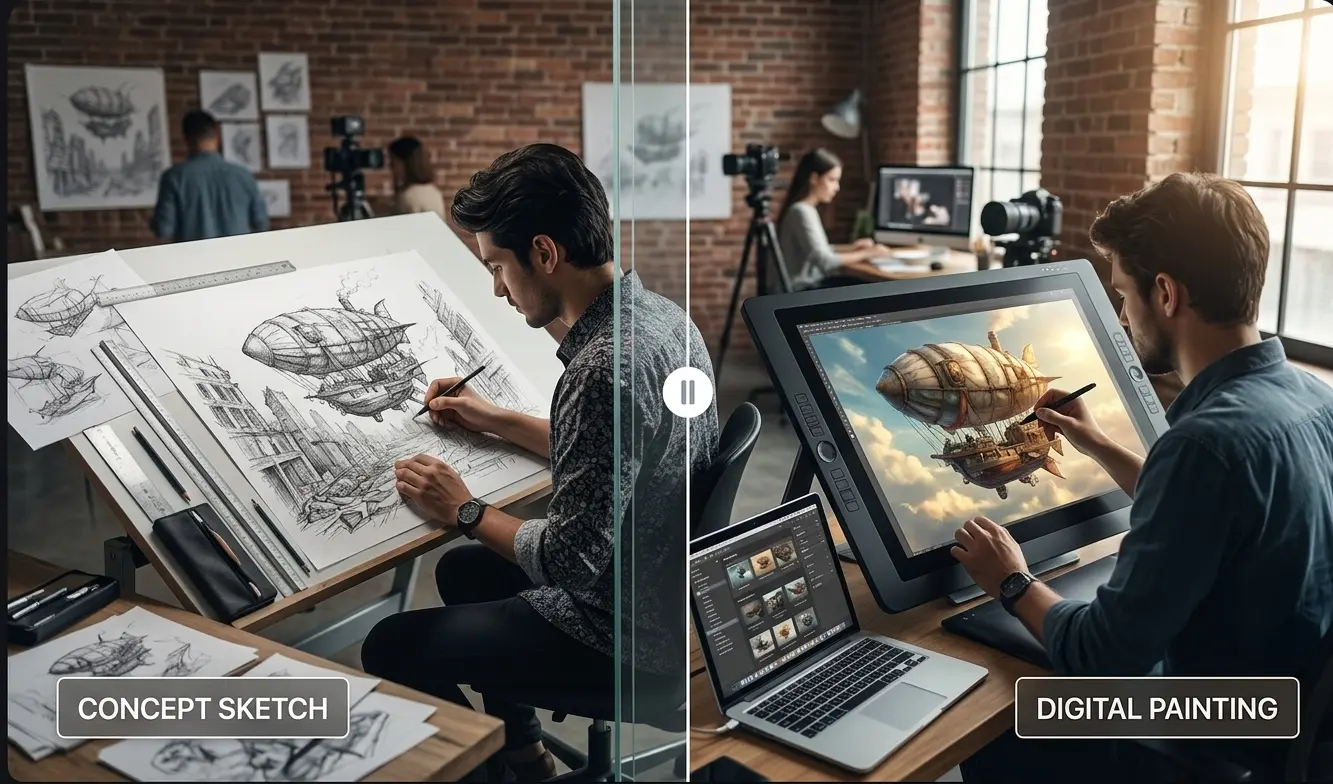
Nail the face, outfit, or environment first, then download the frame you will reuse when you open the video generator.
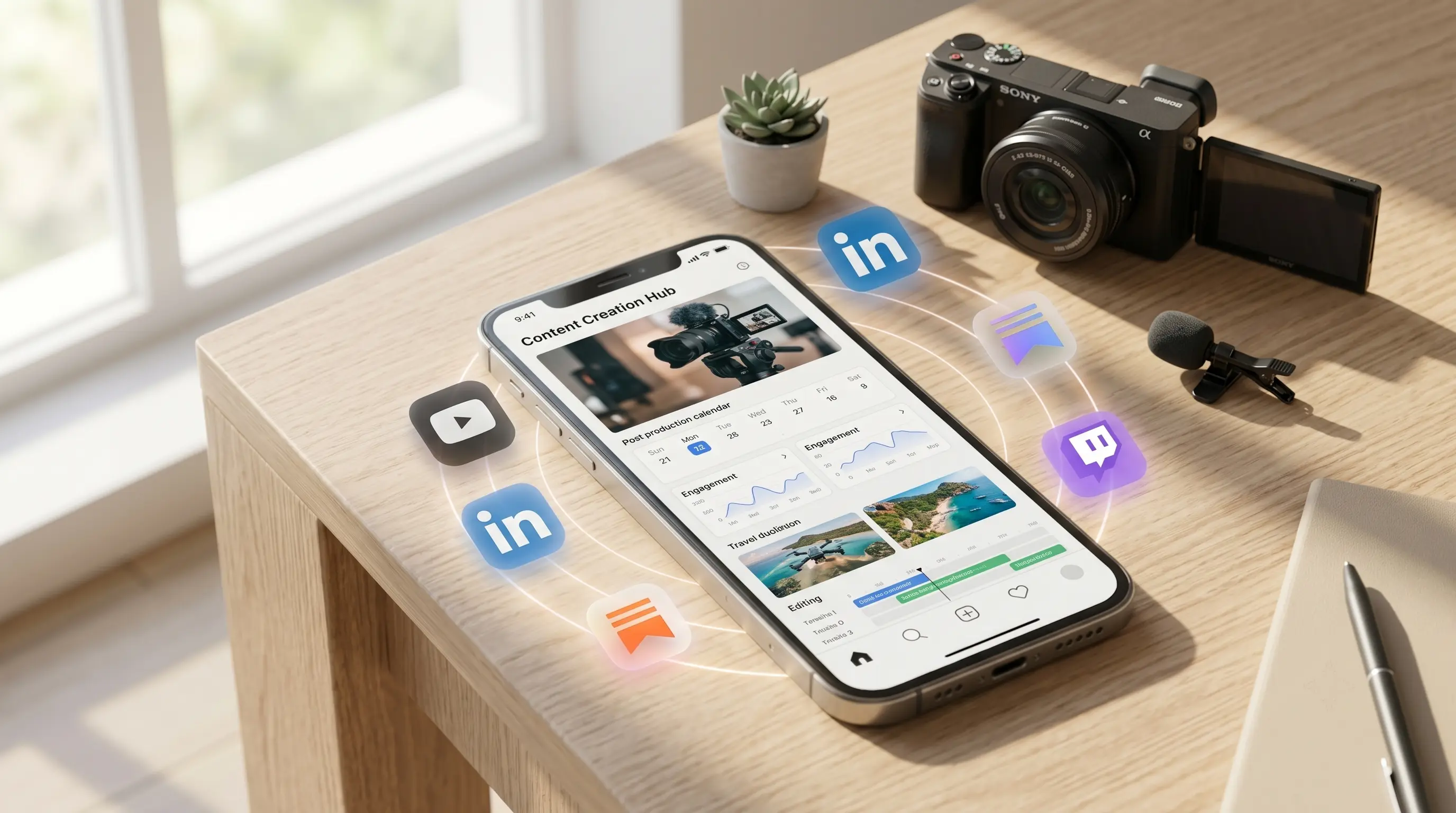
Test a bold cover or feed post in the ratio you actually publish—no blank canvas in a separate design app.
FAQ
Models, references, credits, and downloads—quick answers before you generate.
Jump to the generator above—prompt, references, credits, and download are all on this page.
Create an ImageAIDance is an independent AI platform for video and image creation. AIDance is not affiliated with, endorsed by, or sponsored by OpenAI, Google, ByteDance, or any other AI model provider. Model names and trademarks belong to their respective owners.